

This tutorial will show you hot to create a cool little effect I call "Vibrant Mosaic Tile Overlay" The effect is quick, simple to use, and fun to experiment with.
The image I will be using for this tutorial is this:

The first step is to duplicate the base layer 2 times by hitting CTRL + J Twice while the base layer is selected.
Select the top layer then select Filter > Pixelate > Mosaic...
With this effect it really doesn't matter how big or small your mosaic pixels are, but for this tutorial I am going to choose Cell Size: 12. Usually when I use this effect on pictures of people or cars or things like that I select a larger Cell Size such as 40.
Next, go to Filter -> Sharpen, and then hit CTRL + F (duplicates the effect) 4 times, and set the top layer to overlay.
It should now look like this:
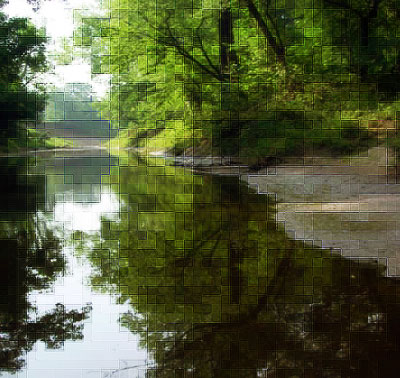
Now set the middle layer to overlay.
Now you're done, and you can add some text if you'd like.
My result:
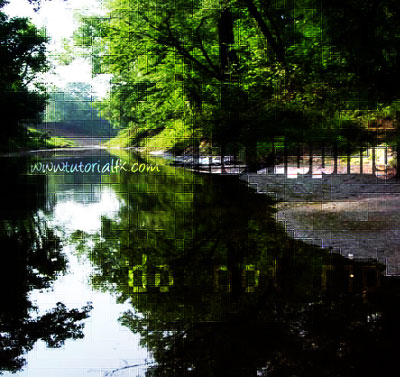
You might find it a good idea to toy around with the levels (CTRL + L) and setting some layers to Linear/Color Dodge.
