


This tutorial will teach you how to create this;

The text I am using is called Impact.
Step 1: Create a new Document size I used is 420x100
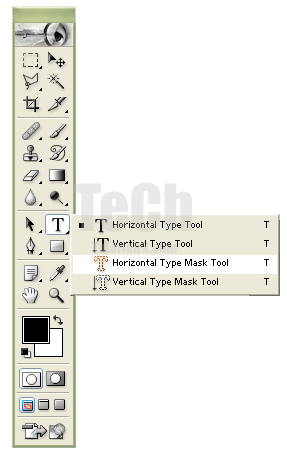
Step 2: Now select your Horizontal Type Mask Tool
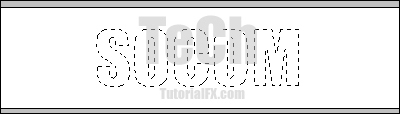
Step 3: Now type SOCOM in the middle of the sheet:
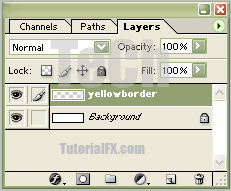
Step 4: Now create a new layer CTRL + SHIFT + N), name it yellowborder:
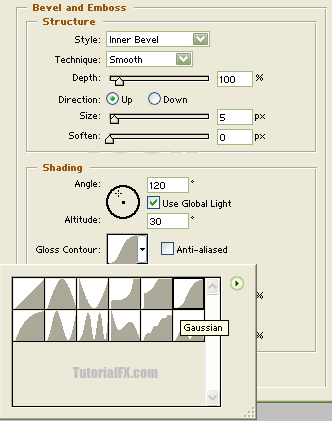
Than right click and select Blending Options and apply the following settings:
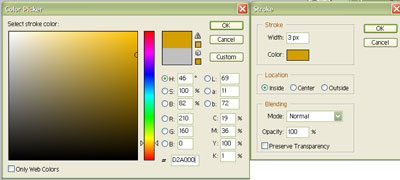
Than while still on same layer select Edit > Stroke and apply the following settings:
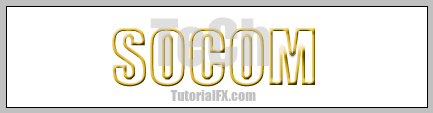
than duplicate yellowborder layer and set it for soft light.
What I currently have is:
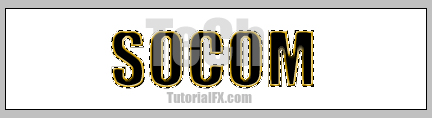
Step 5: Now create another new layer CTRL + SHIFT + N) name this layer Gradient
Fill the selection with black by pressing D -> ALT +Backspace
Step 6: Now right click layer Gradient and select Blending Options and apply these settings:
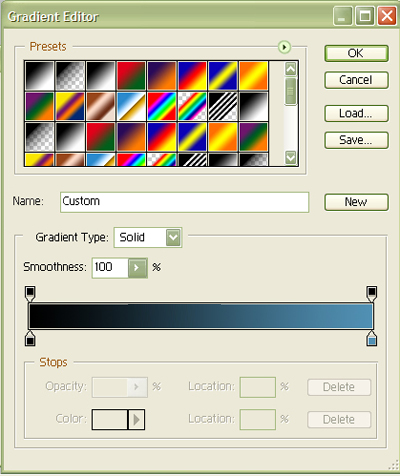
The colors I used are #000000 -> #5190B3
Now we are complete with the socom text tutorial, my final product is this:
