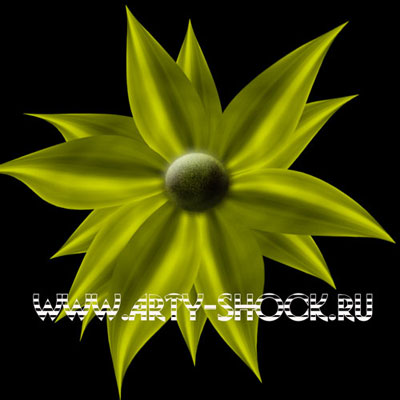
Her

Home Photoshop Tutorials Drawing Techniques Fotorealistic flower in photoshop

Fotorealistic flower in photoshop

Author: Ribka Plavaet Author's URL: http://arty-shock.ru More by this author

image 1
Click to enlarge

Create a new document 1200x1200 in Adobe Photoshop. I will create 1200/1200 300 dpi RGB document, but you may to use a different size.

Go to Filter> Render> Clouds, then apply Filter>Render>Different Clouds and Filter>Blur>Motion Blur.
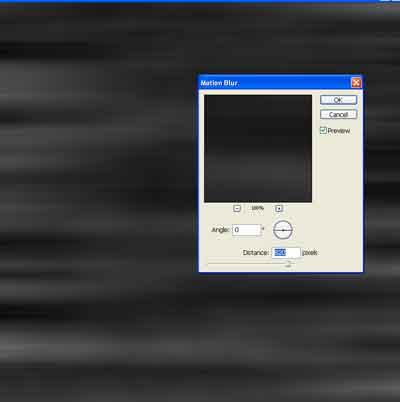
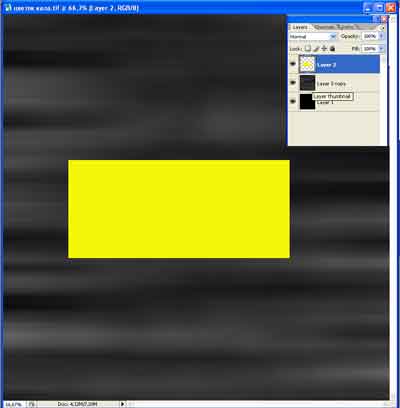
image 2

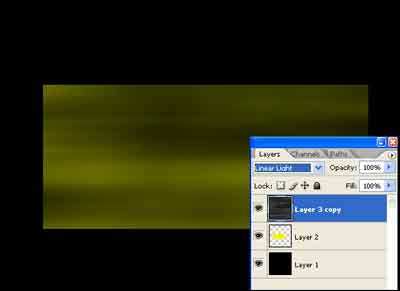
Create a new layer (Ctrl+Shift+N), then using Rectangular Marquee tool make selection and fill it with yellow:

image 3

Send layer backward, then change Blending Mode of texture layer to linear Light.

image 4

Make selection of yellow rectangular, then invert selection and press Del.

Copy yellow rectangular and change the Blending Mode to overlay.
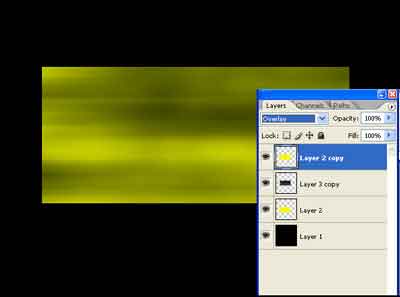
image 5

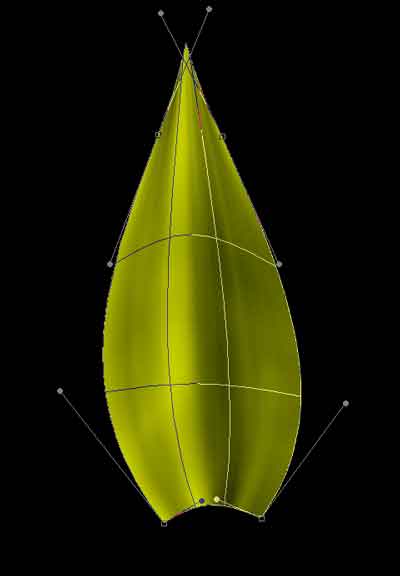
Merge layers (except background) and apply Warp.

image 6

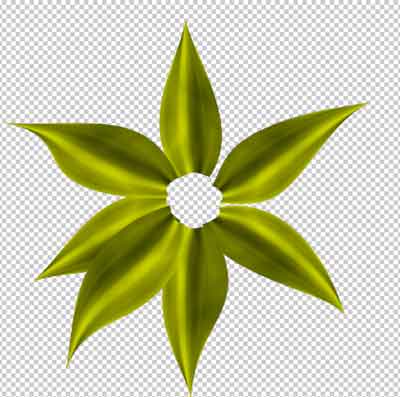
Copy and rotate flower petal.

image 7

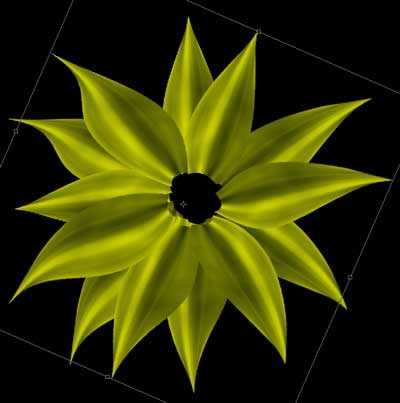
Merge layers, then copy once again, rotate.

image 8

In new layer create elliptical selection, fill it and add volume with layer style
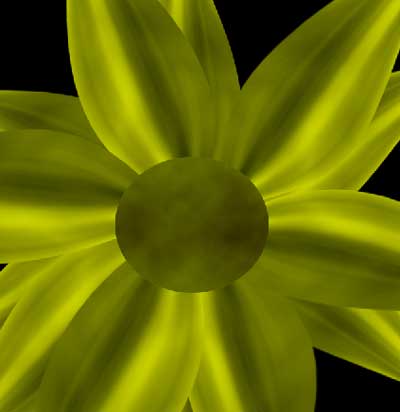
Fotorealistic Flower in Photoshop

Good luck!