Let's learn how to make photograph skin look shiny
Shiny skin gives a sexier and more attractive look . Today i will show you a way to get this effect on the skin ( dont ask me why i didnt use model with bikini .
Here is stock we will use:
1. Duplicate your base. Use Surface blur with radius =8, threshold=5. I choose this effect because the model skin is pretty soft, without blemish and Surface blur can create quickly a softer skin but still keeps the sharpness for her face and body. Then eraser the hair:
3. Ctrl+Shift+Alt+E .Use Dodge tool with Hightlight mode, Exposure 77% to spot on her skin like that:
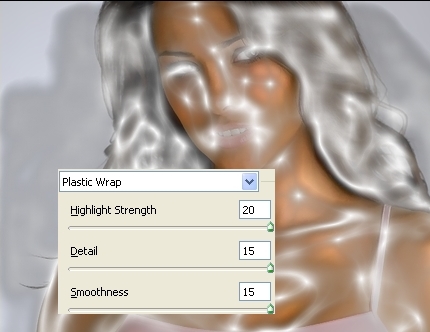
5. Set this layer to Soft light, 100%. Then duplicate your base, set it to Soft light 100%, drag it to the position under the Plastic effect layer. Then eraser lightly unneccessasy part on Plastic layer and we have the picture:
6. Now we will adjust color and light to make her skin look realer and more attractive. A new selective color:
Red: 100,0,0,0 Yellow: -100,-100,-100,0 White:-100,-100,-100,0 Neutral:-13,0,0,0 Black:100,100,100,0