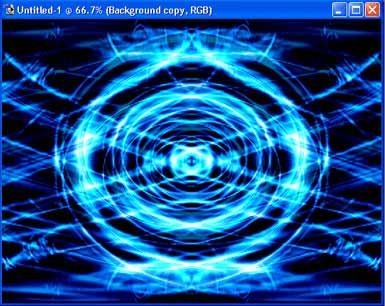
1) Open a new document 1024*768 or 800*600.
2) Make a new layer. Fill with Black (000000)
3) Apply two Lens Flares (Filter-Render-Lens Flares). First 50-300mm Zoom.
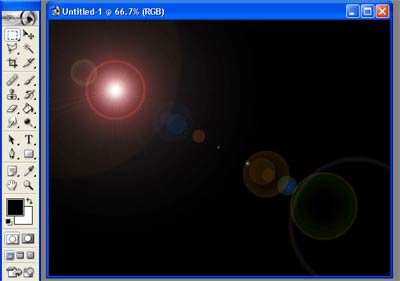
4) Second 105mm Prime
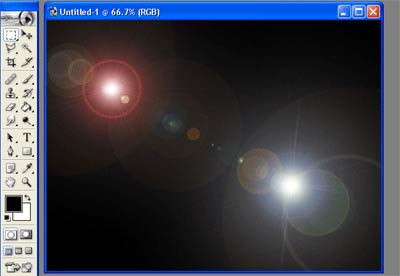
5) Go to Image-Adjustsments-Brightness/Contrast. Brightness=80.
6) Go to Filter-Distort-Twirl. Angle=800.
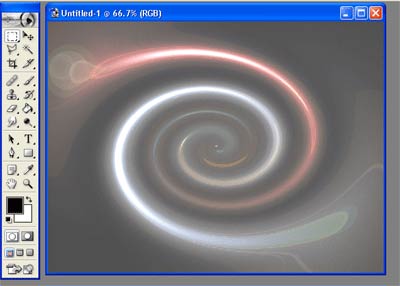
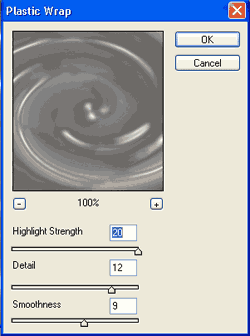
7) Go to Filter-Artistic-Plastic Wrap. Use this Settings.
8) This is the result.
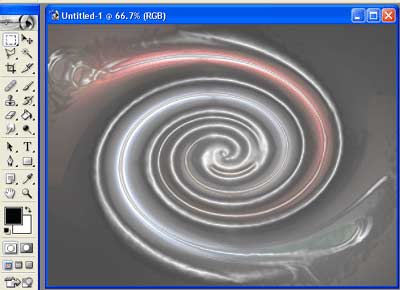
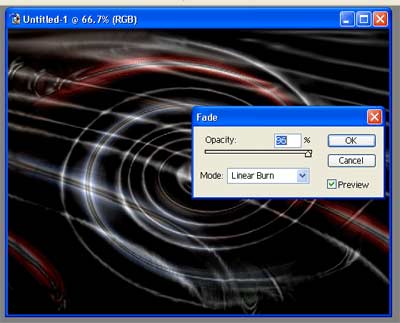
9) Now go to Filter-Distort-Polar Coordinates. Polar to Rectangular. After that go to Edit Fade Polar Coordinates. Use this Settings.
10) After that go to Image-Adjustments-Hue/Saturation. Edit the Color the way you like.;-). Copy this layer and go to Edit-Transform- Flip Horizontal. Set the blending mode to Linear Dodge (or something else, it’s not important). Take a look at my picture. Almost Done
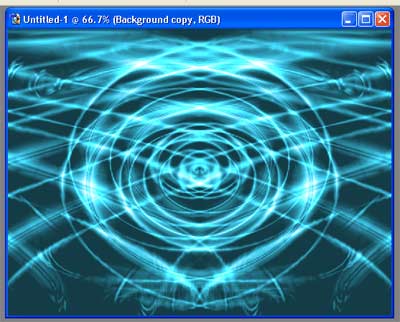
11) Now merge this two layer together and dublicate this merged layer once more. Go to Edit-Transform- Flip Vertical. Set the blending mode to Anything you want. Add a final Image-Adjustments-Hue/Saturation. And Your done.