


1. First open a new document, it doesn't matter what size (i recommend a big size)
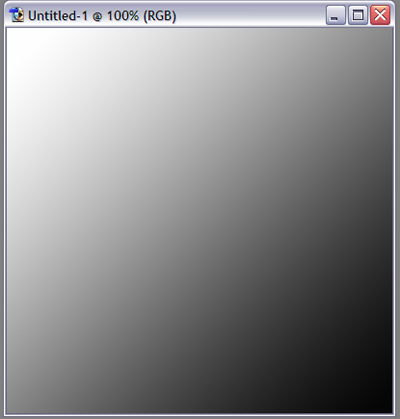
2. Create a gradient (like this one)
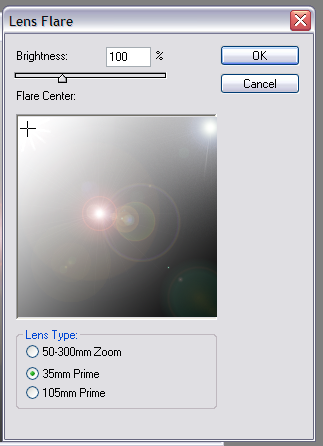
3. Then create three lens flares, there is a 35mm flare in the upper left corner (its hard to see)
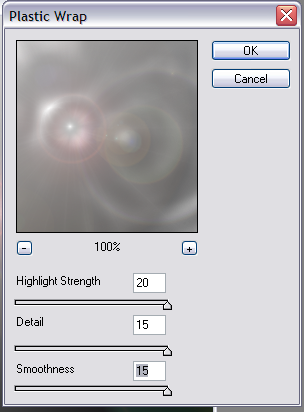
4. Next you hit Filter>Artistic>Plastic Wrap, and use these settings
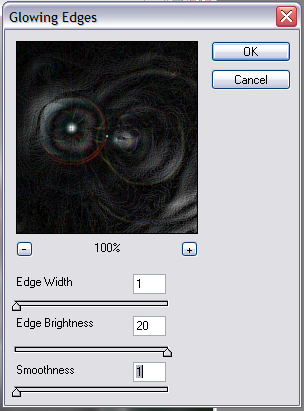
5. Then Filter>Stylize>Glowing Edges, and use these settings
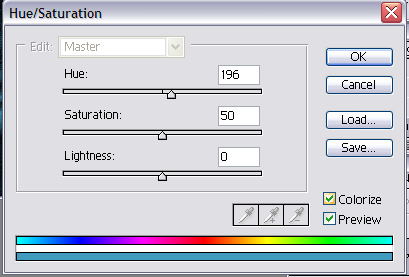
6. Then Image>Adjustments>Hue/Saturation, and use these settings
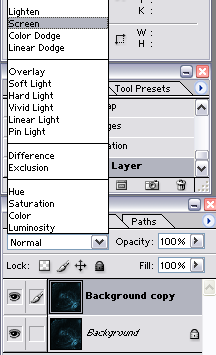
7. Next you duplicate the layer
8. Then put the second layer on Screen
9. There you have your image, it should look something like this:
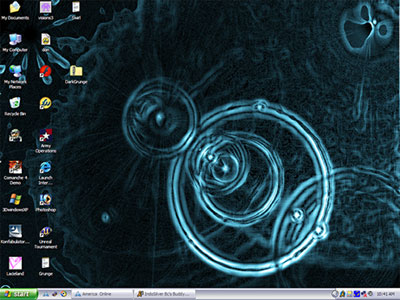
You can also play with the position of the lens flare or you can use rasterized text and you can make some sweet stuff
Hope you like it!
