Hi!! I like this effect i hope you like it
1. Make a New Document the size you want... I make on of 300x150 px
2. Fill the Background with white or you can leave it transparent... for the first time i recommend fill it with white
3. Now Type your Text.. Whatever you want but it have to be White... sorry if you can see the letters
4. Then make sure the Layer text is selected and Go to: Layer > Layer Style > Blending Options and use the next presets:
Drop Shadow:
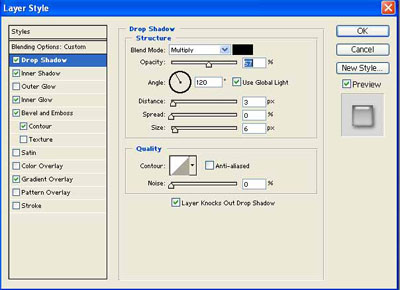
Click to enlarge
Inner Shadow: [Make Sure the Global Light is disabled]
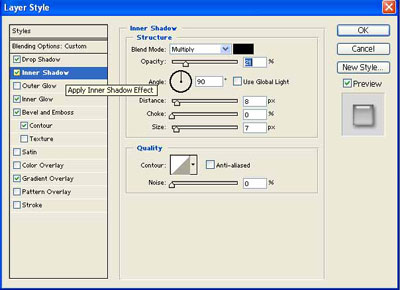
Click to enlarge
Inner Glow
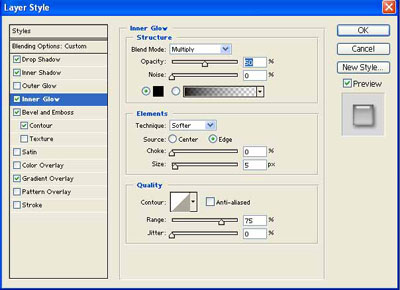
Click to enlarge
Bevel and Emboss [Make Sure the Global Light is disabled]
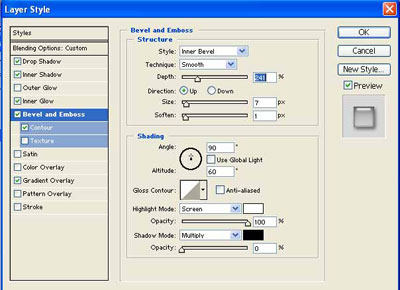
Click to enlarge
Bevel and Emboss > Contour
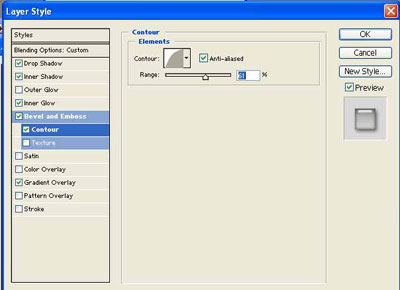
Click to enlarge
Color Overlay:
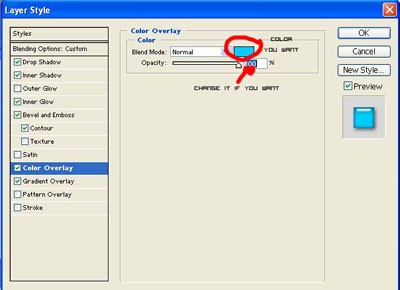
Click to enlarge
Gradient Overlay
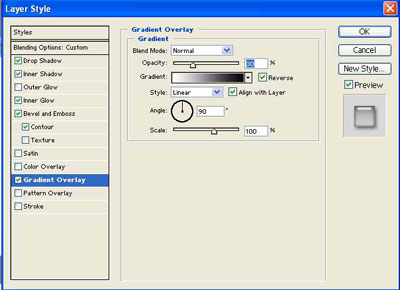
Click to enlarge
Its all. Here is the Final Result: